Major features
Better curves and circles for drawing Training paths
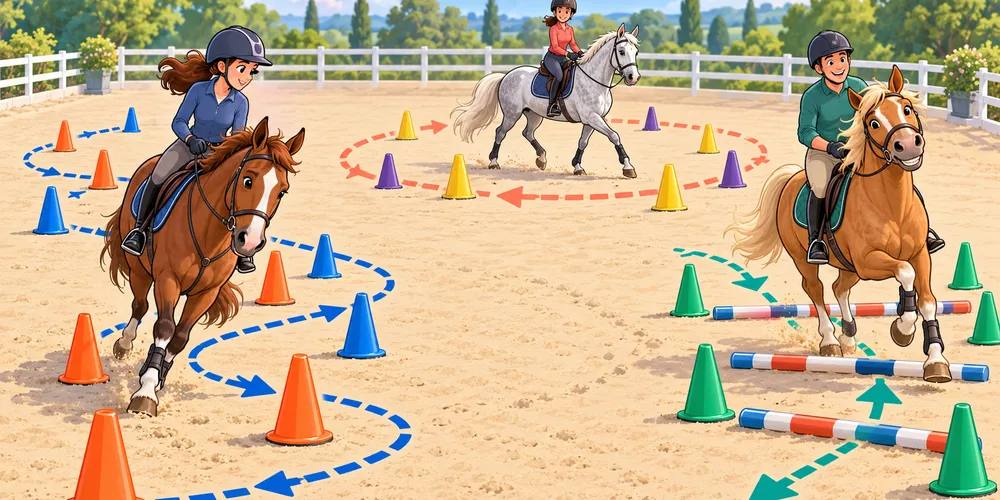
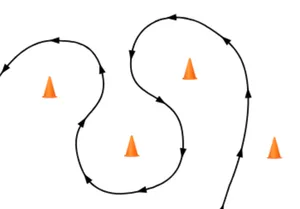
Curves and circles have become much more capable drawing tools for Training courses. They can be used to show an additional riding line, an exercise path or the intended direction through a sequence without making that line part of the main obstacle route. For this kind of free-form Training path, we recommend using curves additionally to connecting the obstacles.
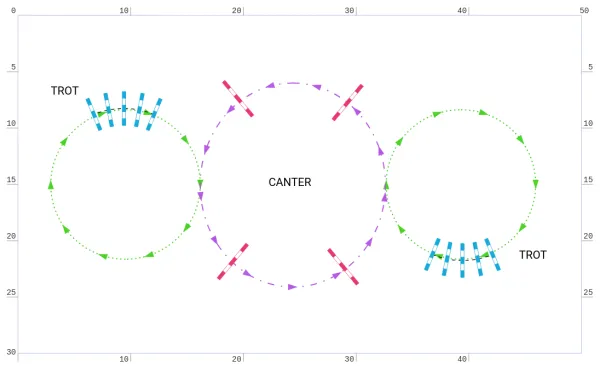
Both curves and circles can display repeated direction arrows along their path. You can choose the direction of travel and adjust the arrow appearance, size and spacing, making the line easy to follow without covering the exercise underneath. The arrow settings are shared through Display options, so additional paths can use a consistent visual style throughout the design.

Curve editing is now much more precise. Drag a curve point or its handles directly on the arena for quick visual adjustments, or select the point and enter exact handle values in the Object panel. Handles can work together to create a smooth transition or be adjusted independently when the path needs a sharper or asymmetric turn. You can also add handles to curve endpoints, break a curve at the selected point and close an open curve while preserving a natural shape based on the neighbouring handles.
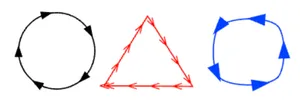
Circles and ellipses use the same direction-arrow concept and can be resized from the arena or through exact values in the Object panel. Together, these tools make it easier to draw circles, loops, bending lines and complete flatwork exercises that remain clear at different zoom levels and in printed plans.
Competition and Training designs often need different sets of objects. The editor toolbox can now be customised separately for each course type, so changing the Training toolbox no longer affects the Competition toolbox.
Use the cog button at the bottom of the toolbox, or the toolbox customisation command in its context menu, to choose which items are visible and arrange them in the order that suits your work. The editor remembers both layouts independently. You can keep Competition obstacles close at hand in Competition designs while giving curves, circles, cones and other exercise-building tools a more prominent place in Training designs. Each toolbox can also be reset to its own default arrangement.
Built-in Training cones
Training cones are now available as built-in images in the Images tab of the right editor panel. Drag a cone onto the arena like any other image, then position, rotate and resize it to mark turns, channels, stopping points or exercise boundaries. Hold Shift key to avoid resizing when rotating.
Improvements
Playback controls and timeline for 3D flyovers
The 3D flyover now includes a progress bar with playback controls. You can play or pause the flyover and seek to any point on the timeline to review a particular part of the course. Markers show when each obstacle is reached, making it easier to find a specific jump and see where it falls in the flyover.

Your own images on 3D advertising banners
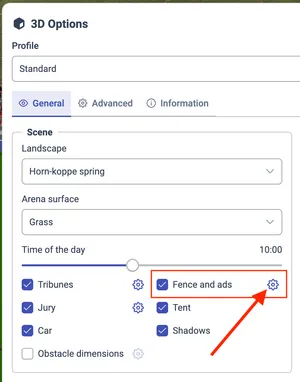
The advertising banner settings under 3D Options → Fence explain how you can use your own images on the arena fence and provide a link to the Images list in the editor, where you can add new artwork and then use it as a banner in the 3D simulation.
Mirroring objects and complete layouts
New Mirror horizontally and Mirror vertically commands can reflect obstacles, curves and circles. A single object is mirrored around its own centre, while a multiple selection is mirrored as one layout around the common centre of the selected objects.
Aligning objects with a selection or the arena
New alignment commands can arrange selected objects relative to the selection itself or position the complete selection relative to the arena. You can align to the left, right, top or bottom edge, or centre the objects horizontally or vertically.
Renaming designs from the Design Explorer
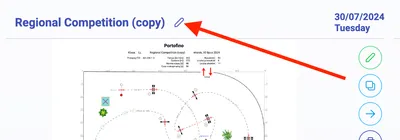
Designs can now be renamed directly from the design list and the Design Explorer. Use the pencil button next to a design name to change it without opening the design editor first.
Custom names for rounds and training sections
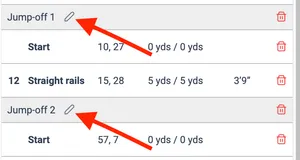
Rounds and training sections can now be renamed directly on the list in the right panel under Course tab. Custom names will be used in the Competition table, making it easier to describe formats such as a first phase, second phase or jump-off in the terminology used for a particular Event.
Custom names for objects in the control panel
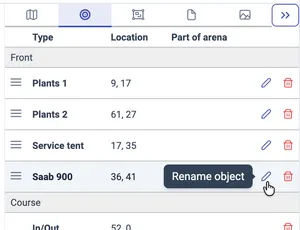
Background and foreground objects can now have custom names in the Objects list. This is useful for distinguishing several curves, circles, text boxes or images that would otherwise have identical names. Leave the custom name empty to restore the automatic object-type name.
Obstacle dimensions on the course-plan PDF page
The PDF page selector now includes an Obstacle dimensions option for the main course-plan page. Use it to include the obstacle height and width annotations that are visible in the design.
Preparing an aligned image as the course background
The Align with arena command for Images now has a Prepare as course background option. After the selected arena rectangle is aligned, the tool can automatically reduce the image opacity, move it to the Background layer, send it behind the other objects and lock it. This removes the repetitive setup previously needed when importing a PDF page or an image as a template for drawing a course.
More reliable 3D video recording
Before recording starts, the application now tests the complete video encoder configuration by encoding a sample frame. If a browser or graphics device rejects a codec, resolution or hardware-acceleration combination, the recorder can try another supported configuration instead of failing only after the recording has started.
Application update download indicator
When a new application version is being downloaded in the background, a rotating update icon now appears over the parkour.design logo. The logo tooltip also explains that the download is in progress.
Fixes
- Design editor
- Fixed a problem when moving obstacles caused other parts of the course route to changing shape unexpectedly.
- Object rotation handles now take priority over objects underneath them, making selected objects easier to rotate.
- Curve control points can now be selected reliably when a curve overlaps another object.
- Converting a Competition course to a Training course now completes correctly after detected issues are fixed automatically and the conversion is confirmed.
- Printing and saving to PDF
- Fixed the initial size and resizing behaviour of the PDF page selection dialog.
- Fixed the problem with some browsers blocking the popup print window preventing the printing to complete.
- 3D
Fixed casting proper shadows by advertising banners on fences
- Prevented an error when starting a flyover without enough valid camera route points.
- Fixed flickering when using tall / narrow output video recording formats
- Oxers and triple bars now face the correct direction in the 3D view.
- Temporary problems while loading subscription or profile information no longer incorrectly block access to application features.