Creating a design
This page explains how to create a new design from scratch.
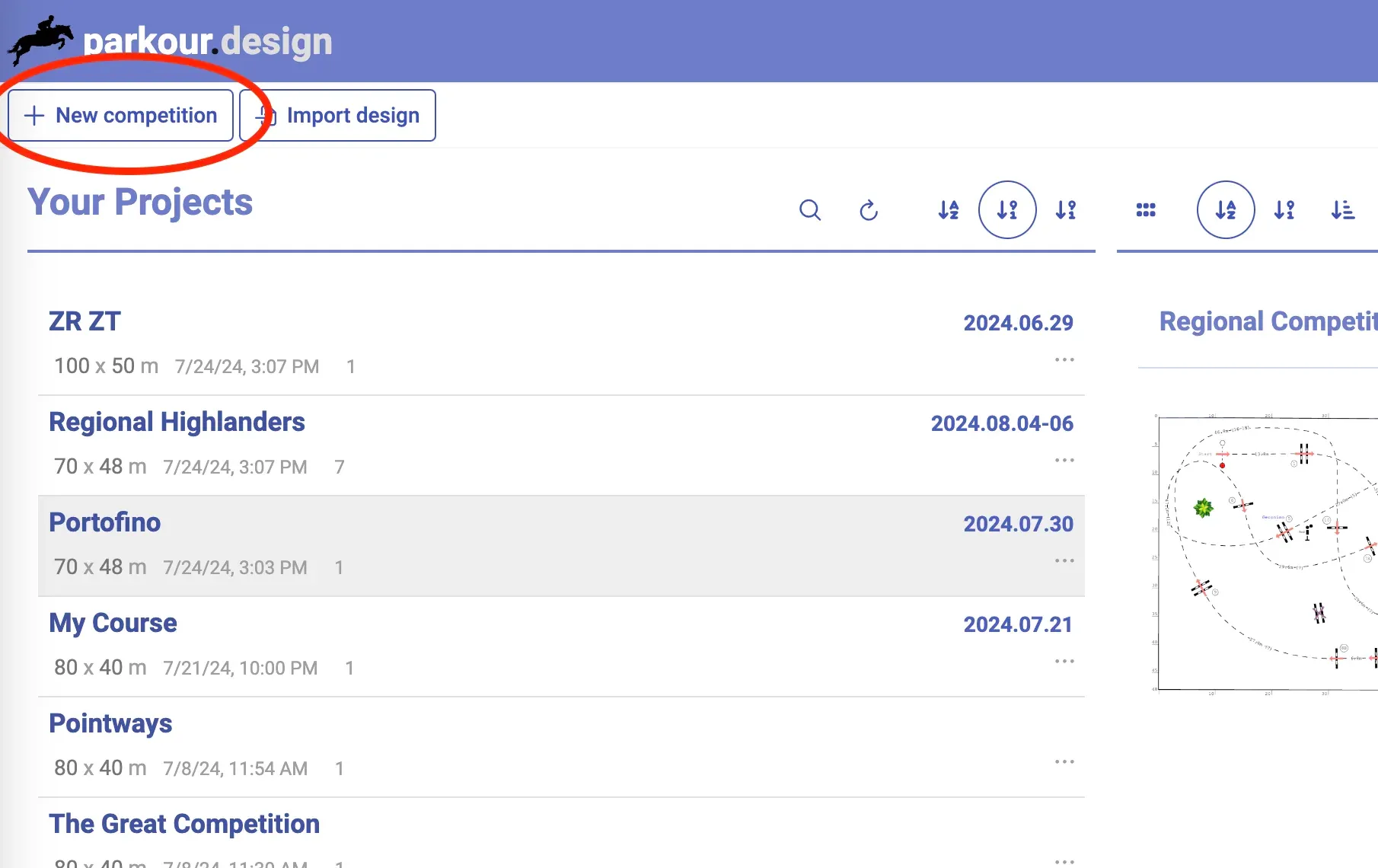
Open the page with Your Projects. Click on the New Competition button.
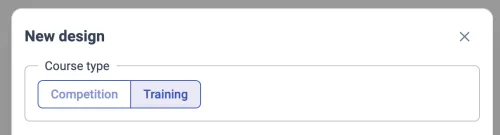
At the top of the new design dialog, you have to choose if you are going to design a Competition course or a Training course. Depending on the choice, you will get a different set of design tools, suited specifically to the type of the course.
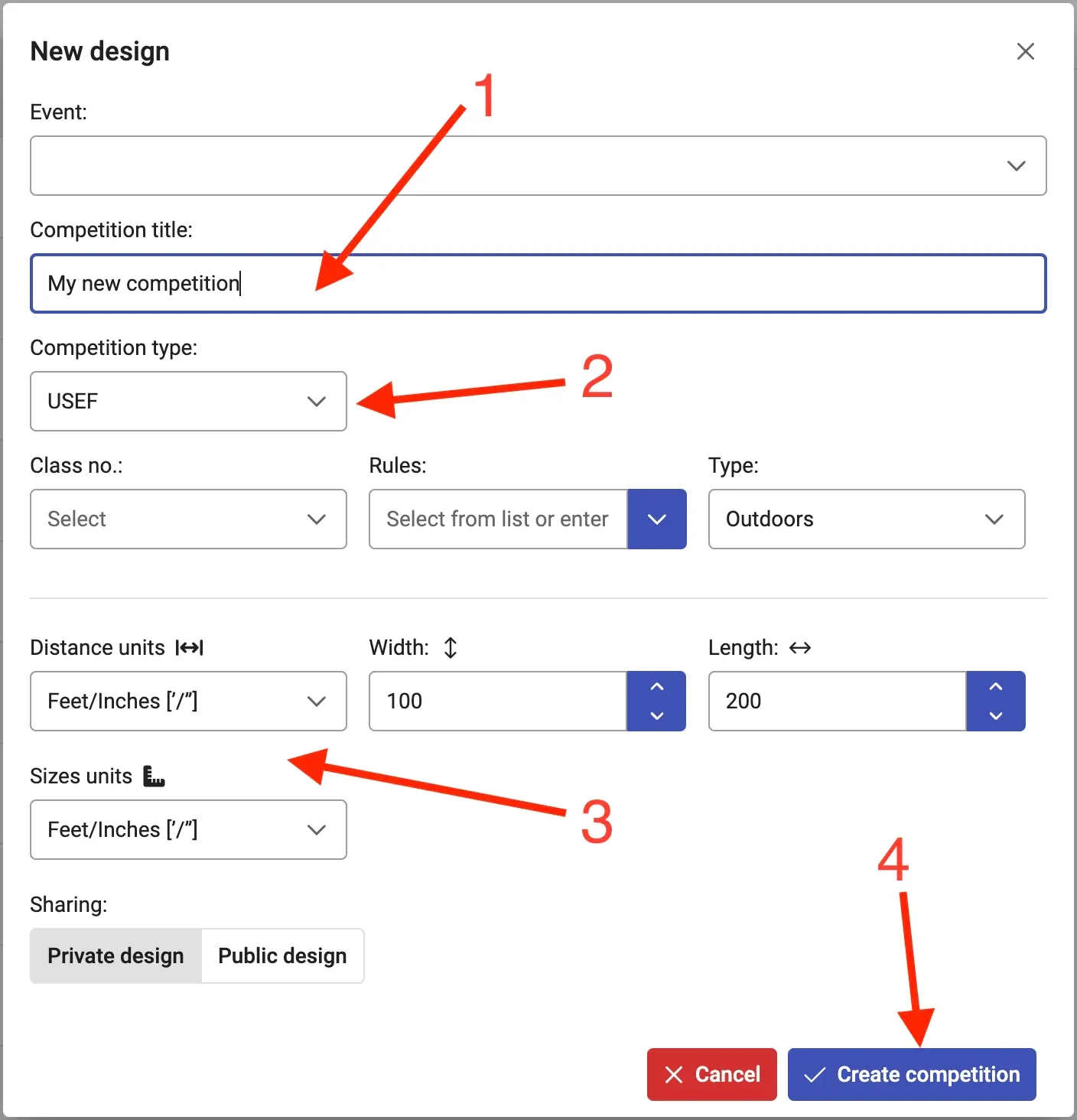
Fill in the details of the competition or training session. At minumum you have to provide the Competition/training title (1).
You can choose the event of this competition from a drop-down list above the title, or create a new event typing in its name.
For a competition course you can specify addittional parameters:
- (2) type of competition – choose which federation (e.g. FEI, USEF) rules apply – this impacts the allowed ranges of parameters (e.g. spreads, heights) and the validation of the course
- competition class, article number, indoor or outdoor type (if applicable in the selected competition type)
If your federation is not available for selection, you can still do the design, but you will have to configure the competition parameters manually. Leave the Competition type as Unspecified and fill in Class no and Rules manually. After the design editor opens, go to the Competition parameters (default shortcut P), check and set the parameters on all tabs to match your competition.
At the bottom of the parameters, you can choose the (3) units used to display distances and dimensions (sizes) and arena size.
All these parameters can be later changed when editing the course in the Competition Parameters or Display Options.
Press Create competition (4) when ready – your new design should open and be ready to work on.
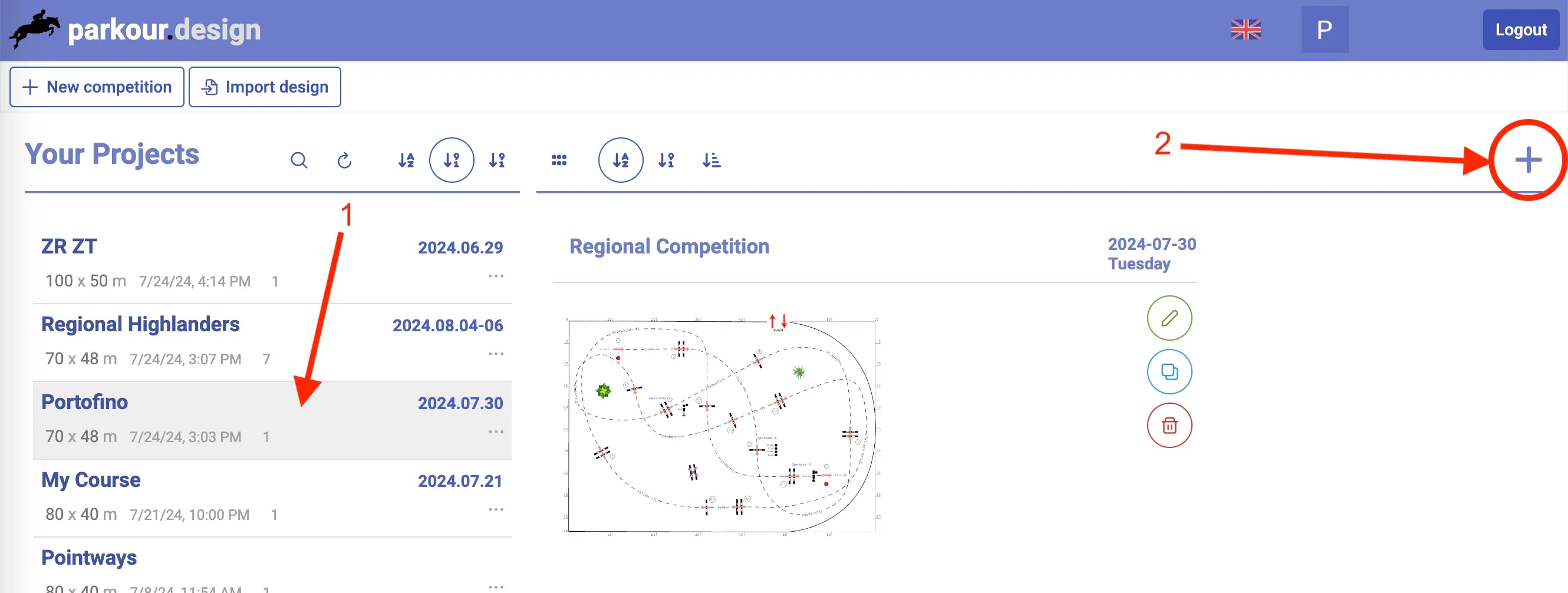
If you already have some event with designs, you can add a new design to that event by selecting it (1) and clicking on the plus sign (2) on the right side of the header of designs’ list.