Design versions
What is a design version
A version is a snapshot of one design at a particular moment. It preserves the course as it looked when the version was created, even while you continue working on the current design. You can give a version a name, such as “First proposal” or “Approved course”, so it is easy to recognise later. If you leave the name blank, parkour.design identifies it by its creation date and time.
Versions are useful at turning points. Save one before you rearrange a course, make changes requested by an organiser, or try a different set of obstacles. If the new direction does not work, you can return to the earlier arrangement. A version is a point you deliberately save; it is not a running history of every edit.
Creating a version does not create another design in My projects and does not interrupt your work. You keep editing the current design. You need an internet connection to create, open, restore, or delete versions.
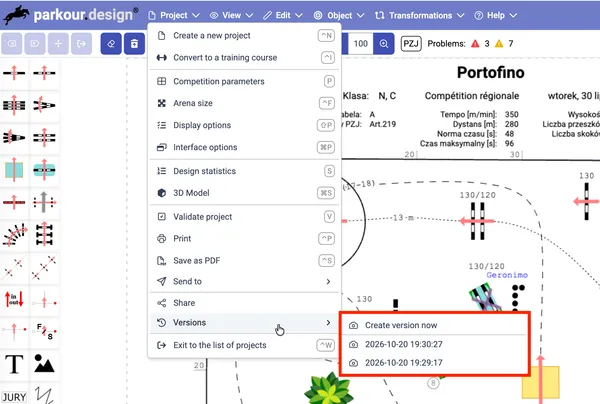
Create a design version
Open the design in the editor. In the Project menu, open Versions and choose Create version now (the camera icon). Enter a name if you want one, then select Save version. You can also press Enter while the name field is active. The new version appears under Project → Versions, alongside its creation date and time.
Choose names that remind you why you saved the version—for example, “Before adding jump-off” or “Sent to organiser”. You can save more than one version as the design develops.
Return to an earlier version
Open Project → Versions and choose the version you want. If there is enough room beside the menu, hovering over a version shows a small preview. Selecting it opens a larger preview and a Version: dialog, so you can check that you have the right course before changing anything.
Select Restore this version to put that saved course back into the current design. This is not a temporary view or a switch to a separate copy: the current design takes on the saved version’s content, and you can continue editing it normally. Before restoring, parkour.design saves the current state as a separate version named Before restoring. That gives you a way back if you later decide you preferred the state you replaced. The version you restored remains in the list too.
If you only wanted to inspect the old course, select Cancel instead. Your current design stays as it is.
Delete an old version
Open Project → Versions, select the version, then choose Delete this version in its dialog. A separate confirmation window shows whether any shared links depend on it. Review those links before confirming: deleting the version is permanent, and every dependent shared link is deleted too. A link to a fixed event view is removed in full if it relies on the version of even one design in that event. Those addresses will stop working.
Deleting a version does not change the current design. If you may want to return to that course later, keep the version; if you only want to stop giving someone access, delete the relevant link in the sharing window instead.
Versions and sharing
When you share a design or event, you can let the recipient see the latest saved state or a fixed version. Create version now makes a new fixed version for the link; you can also choose a version you already saved. A fixed link keeps showing that version even as you edit the current design. An Always latest link follows later changes after they finish saving.
Restoring an older version changes what an Always latest link shows after the recipient refreshes it. It does not change a fixed link to another version. Deleting a version, however, deletes any shared links that depend on that version. The sharing guide explains how to choose link permissions and manage those links.