Sharing designs and events
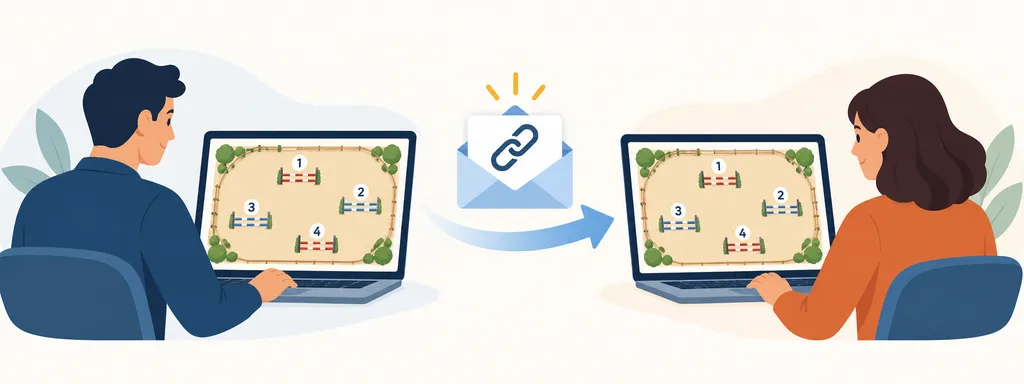
If you have a design open and want to show it to someone, do not copy the address from your browser’s address bar. That address leads to your own editing workspace. Instead, open Share design (or Share event for a whole event), choose what the recipient may see and do, and select Create share link. parkour.design then generates a new web address for this particular sharing. Copy the address shown in the sharing window and send it by email or message.
What sharing means
When someone opens the new address, they see a separate page with your design or event—not your editing workspace or account. They do not need to sign in just to view it. A share link is not another design file, and it does not let anyone change your original. You choose whether it follows later saved changes or stays on a fixed state, and which other actions are available to the recipient.
Treat the address like a key: anyone who receives it can open the shared page, including someone your recipient forwards it to. You can make different share links for different people, with different choices, and delete a link when you want that address to stop working. Your original work stays in your account.
For example, you might send a course to a fellow designer who will finish the design. Turn on Copy when creating the link. They can sign in, save their own copy, and edit that copy in their account. Your original remains unchanged, and the two copies do not stay in sync. This is a handoff, not simultaneous editing of the same design.
Or suppose an event organiser needs a flyover video for a competition. Share the design or event with 3D Model enabled. They can open the shared page, explore the course in 3D, and record a video without receiving an editable copy. You can leave Copy off if they only need the preview and video. See 3D Visualisation for the video controls.
Sharing a design
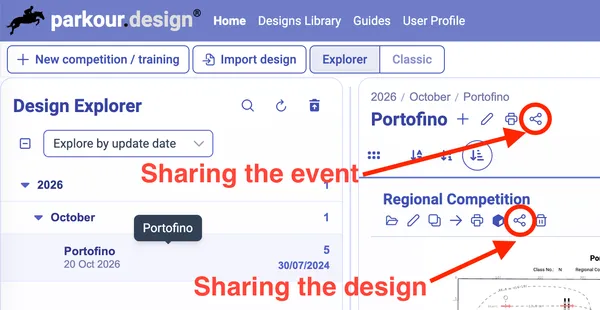
Creating or managing a share link requires an internet connection. On My projects, find the design in the grid or list and select the Share design icon. If the design is already open, choose Project → Share. If you are offline, reconnect before using the sharing window.
In the Shared version selector, choose what the link will show:
- Always latest shows the current design after its edits have finished saving. The recipient can see later changes by refreshing or reopening the link. Use this while a course is still being developed and the recipient should follow your updates.
- Create version now saves a version for this link at the moment you create it. The recipient keeps seeing that state, even if you continue editing the original design. Use this for an approved course plan or a design that should not change under the recipient’s feet.
- An available version lets you share a version you saved earlier. Like a newly created version, it stays fixed while your current design changes. See Design versions to learn how to save and restore these milestones.
Next, choose the Recipient permissions. The eye icon means Preview, which is always available. You may also allow Print / PDF, 3D Model, and Copy. Hover over an icon to see what it means; a blue icon is selected and a pale icon is not. Copy lets the recipient save an editable copy in their own account. Selecting it also selects printing and 3D; turning off either of those permissions turns off copying. Printing depends on the owner’s access, while saving a copy requires the recipient’s account to allow design creation.
Select Create share link, then use the small copy icon beside the new address and send it to the recipient. You can make more than one link to the same design, with different saved states or permissions—for example, a view-only link for a steward and a copy-enabled link for a colleague. The list on the right shows each link, when it was created, and its current permissions. Select a permission icon there to change that link’s rights immediately; its address stays the same.
To stop sharing, select the trash icon beside a link and confirm deletion. The address stops working, but your design and its saved versions remain. Deleting a design version is different: any shared links that depend on that version are deleted too, and the app shows those links before asking you to confirm. Neither action removes copies, PDFs, or videos that someone has already saved.
Sharing an event
On My projects, select the event and use Share event beside its name. As with a design, you need to be connected to the internet. The link covers the whole event, even if your current list is filtered to show only some competitions.
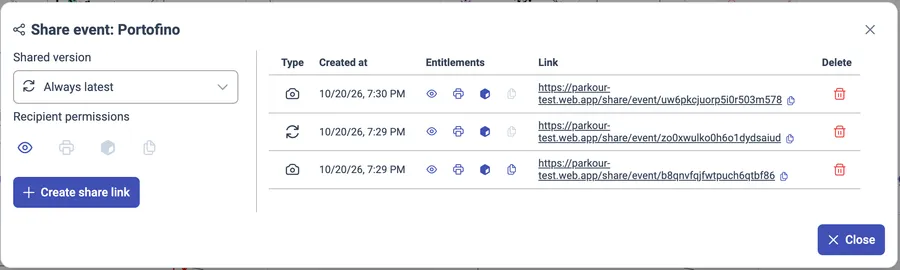
Choose how the event link should behave:
- Always latest shows the event’s latest saved designs. As edits finish saving, or as you add designs or remove them from the event, the link follows that current set when the recipient refreshes it. This is useful while an organiser needs to keep up with the developing programme.
- Create version now captures the current saved state of every design in the event and gives the recipient a fixed event view. Later changes to the designs or event do not alter that link. Use this when you want everyone to work from the same published set of courses. If you have just edited several designs, keep the app open and connected for a moment before creating the link. The Design versions guide explains how you can return to or delete a saved version later.
Choose Recipient permissions in the same way as for a design, then select Create share link and copy the address. The permissions apply to every design opened through that event link. A recipient can switch among the event’s designs; if printing is allowed, they can print a selected design or the whole event. If copying is allowed, they can save a copy of one design or the whole event in their own account.
You can change an existing event link’s permissions or delete the link in Share event. Deleting the link leaves your event and designs intact. A fixed event link depends on the saved versions created for it; if you later delete one of those versions, the entire event link is deleted, not just access to that one design.
Using a link you have received
Open the address your designer sent you. You can view the course without an account, zoom in or out, and use Fit to view to see the whole arena. An event link also lets you choose among its designs. Select Refresh if the owner has told you that a live design or event has changed; fixed versions will not change on refresh.
The buttons you see depend on the permissions chosen by the owner:
- Print / PDF opens printing options for the displayed design. An event link can also offer Print whole event / PDF.
- 3D Model opens an interactive view of the course. You can inspect fences and approaches, run a flyover, and record a video if your device supports the 3D viewer.
- Save your own copy saves an editable copy of the displayed design. On an event link, Save a copy of the whole event may also be available.
To save a copy, you must sign in to an account with an active trial or a plan that allows creating designs. After the copy is saved, open it from your account and continue working normally. It belongs to you: editing it will not change the original, and later edits to the original will not update your copy. If a button is missing, the owner has not enabled that action for the link, or the relevant account or device cannot use it.
If the link no longer opens, ask the owner for a current one. They may have deleted the link or a saved version behind it. Any copy you had already saved in your own account remains yours.