Ride your courses, share designs and save versions - Release 2045
Major features
Ride your course with an animated horse
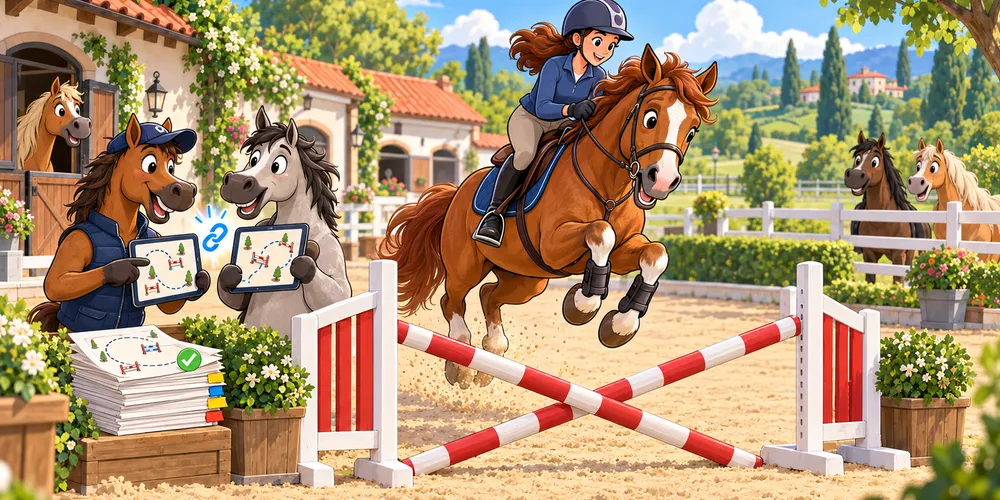
The 3D view now includes an animated horse and rider, giving you a new way to explore the arena and present your course. Ride from the rider’s perspective or use a camera that follows the horse from outside. You can move around the arena, switch between trot and canter, and jump obstacles as you follow your chosen line.
Use W / S or the up and down arrows to move, and A / D / Q / E to turn while moving. Press Shift or the right mouse button to switch between trot and canter, and Space or the left mouse button to jump while riding forward. The help panel in the 3D view lists the controls for the selected mode.
The horse can also follow the course during an automatic flyover. Choose the horse-following camera to watch the round, and adjust its height, distance and angle for the view you want. The route is revealed behind the horse as it progresses through the course. You can include the horse in recorded 3D videos to share a moving presentation of your design.
See 3D Visualization for riding controls, camera settings, and video recording.
Sharing designs and Events
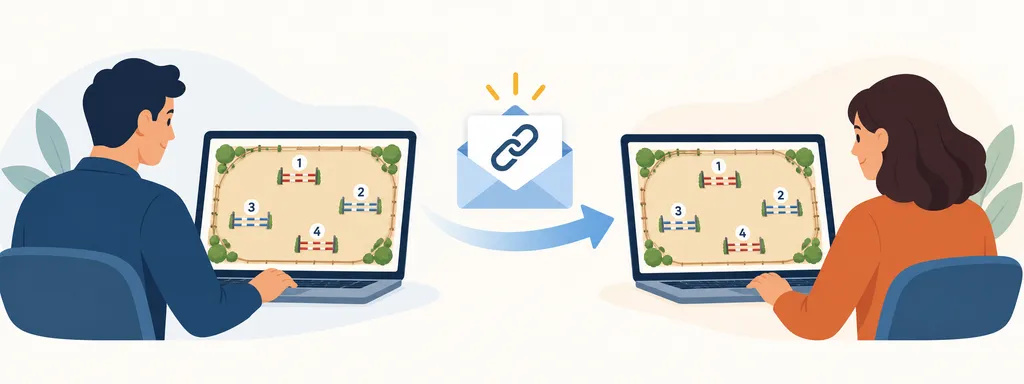
You can now create sharing links for an individual design or a complete Event. Recipients can open the link to preview the course without signing in, making it easier to send plans to riders, trainers, organizers and other course designers.
Choose whether a link should always show the latest design or a saved version. A latest-design link reflects later changes, so you can keep one link while refining the course. A saved-version link keeps showing the selected version, which is useful when sending an agreed plan or comparing alternatives. You can select an existing version or save a new one while creating the link. For Events, you can share the current designs or capture a fixed snapshot of the Event.
Each link has its own permissions. You can allow recipients to print or save to PDF, open the 3D simulation, or copy the shared design or Event into their own account. Copying requires signing in. You can change a link’s permissions later or delete it to stop access through that link.
Save named versions of a design to keep important stages of your work, such as an initial proposal, an alternative layout or the final course plan. Versions include previews and creation dates, making them easier to recognize when reviewing earlier work or choosing a version to share.
You can restore an earlier version when you want to return to a previous layout. Before restoring, the application saves a version of your current work, so you can return to it if needed.
See Design versions for instructions on saving and restoring versions.
Improvements
An equestrian center around your arena
The 3D view can now surround your arena with an equestrian center, including a stable, fenced grass paddocks, trees, hedges, and scenery horses. The layout automatically follows the arena’s longer sides, adding context to your course previews and recorded videos.
Enable Equestrian center in Options → General → Scene, then use its cog to choose which elements appear. Adjust the stable dimensions and stall count, paddock count and depth, tree spacing, and horse limits for the stable and paddocks. See 3D Visualization for details.
Cross rail obstacle
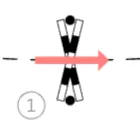
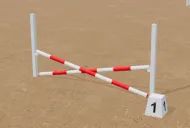
A Cross rail obstacle is now available for your course and training designs. Its two crossing poles appear in both the design editor and the 3D view. See Obstacles and objects.
A clearer design list
The design list and Design Explorer now have a more consistent arrangement of action icons. Design actions are grouped in the headers, including access to sharing, and the command for adding a design to an Event sits alongside the other actions.
Toolbar buttons now have a consistent height, the selected Explorer / Classic view stays selected, and clicking anywhere closes an open design preview. These changes make the list easier to navigate when organizing designs and Events.
Required updates with your work saved before reloading
Keeping the application up to date is necessary to receive fixes and keep using the current application version. When a new version is ready, the application now displays a required update dialog. You need to reload and upgrade before continuing, rather than postponing the update indefinitely.
Before enabling the reload button, the editor saves your current work locally. This save does not require an internet connection. If saving fails, the dialog lets you retry before reloading. Open project settings drafts are also preserved across the reload, so the update does not discard settings you were editing.
Fixes
Limited the width of long titles and descriptions in horizontal course tables. Text now wraps to keep competition and training tables from becoming excessively wide.
Fixed the default size of the car object, which was previously added to the arena much too large.
Fixed an issue where an interrupted registration request could leave a new account without trial access. The application now retries trial activation after temporary failures and can resume an interrupted activation after reloading when the same account is signed in.
On this page
On this page
Major features
We use cookies!
This website uses essential cookies to ensure its proper operation and tracking cookies to understand how you interact with it.
The latter will be set only after consent.
Cookie preferences
Strictly necessary cookies
These cookies are essential for the proper functioning of our website.
Analytics cookies
These cookies help us analyze website traffic and usage patterns.
Marketing cookies
These cookies are used for advertising and targeting purposes.
Functionality cookies
These cookies provide enhanced functionality and personalization.