How to build a training exercise
A training project can be a few poles and a riding line, not a competition course with rounds and jump-offs. This guide takes you from an empty arena to a plan you can use for your next session.
1. Create a Training project
Open the new-design dialog and select Training course, rather than Competition course. Enter a title, arena dimensions and units. You can assign related designs to the same Event.
Use the dimensions of your actual arena. Add a custom outline and fixed objects if needed. See Creating a design and Drawing your own arena shape.
2. Arrange poles and cavaletti
Add Trot poles, Cavaletti or cones from the object toolbox. Select a pole or cavaletti group to edit its Number of poles, Gap and dimensions in the Object panel.
Use Curvature to bend a straight row into an arc. Presets offer a straight line, semicircle and quarter-circle. For an unchanged pole count and gap, bending preserves the spacing measured along the arc through the pole centers; it is not the straight-line chord between them. An inner or outer riding line through a fan has different distances.
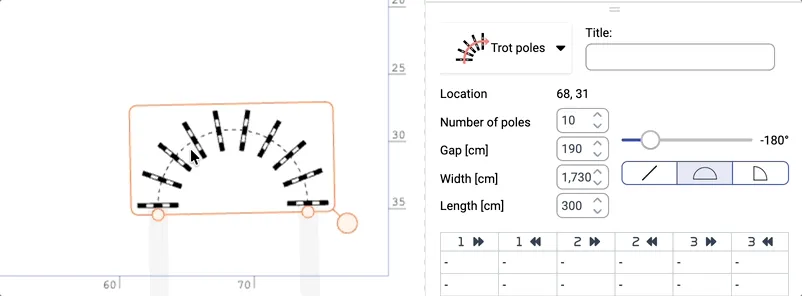
Arrange equipment before drawing the riding lines. Leave room for approaches, departures and turns. Choose spacing, heights, gait and difficulty for the horse and rider; the application does not prescribe a training exercise. Detailed controls are in Training obstacles.
3. Choose drawn lines or connected sections
There are two distinct ways to show a riding line. Choose the method that fits your plan; you do not need to complete both.
| Tool | Use it for | What it does not do |
|---|---|---|
| Method A — Curves and ellipses | Circles, loops, serpentines and alternative riding lines, with colors and direction arrows | Drawing across an obstacle does not connect it to a track or define an automatic camera route |
| Method B — Obstacle connections | An ordered track made of training sections, with connected-distance measurements and route-following cameras | Connections do not choose suitable training distances or assess the horse’s response |
Method A — draw riding lines
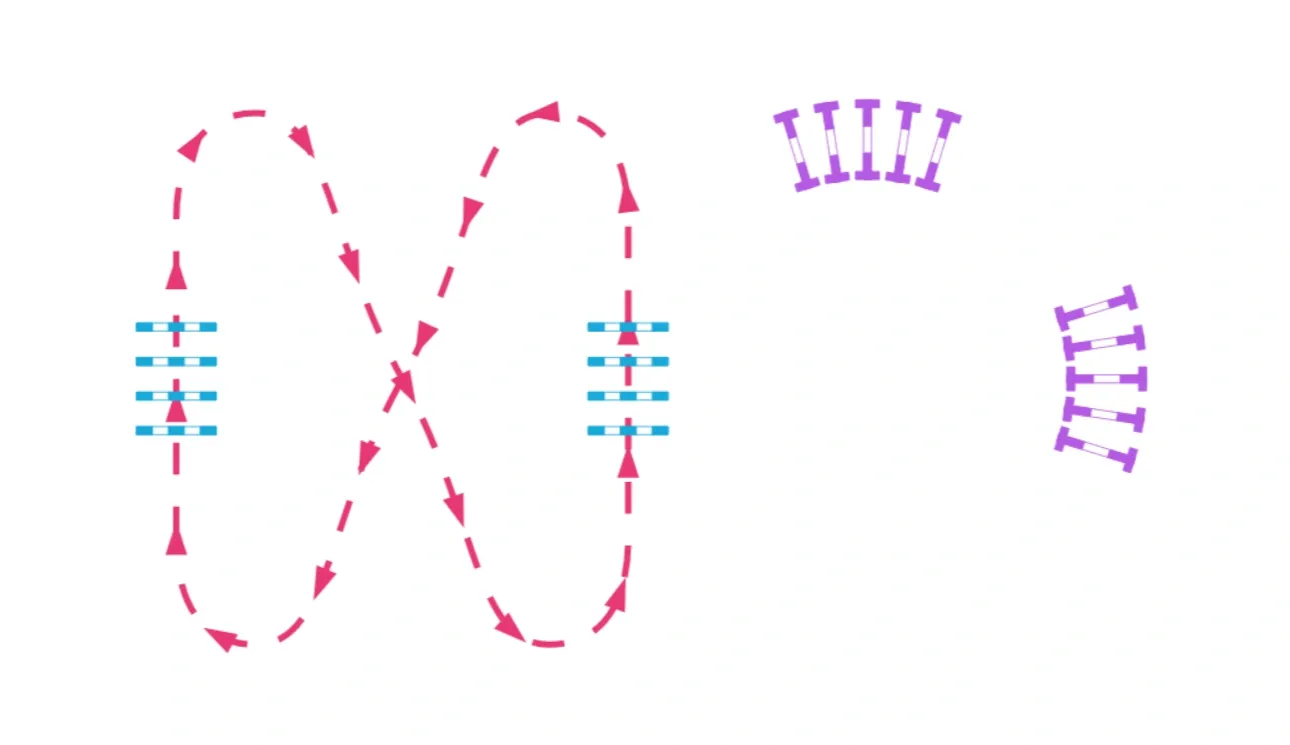
For a visual exercise plan, draw curves or ellipses and set their colors and arrow directions. Close a line when you want to show a repeating circuit; an open line should have a clear approach and departure. See Drawing a shape and Drawing an ellipse.
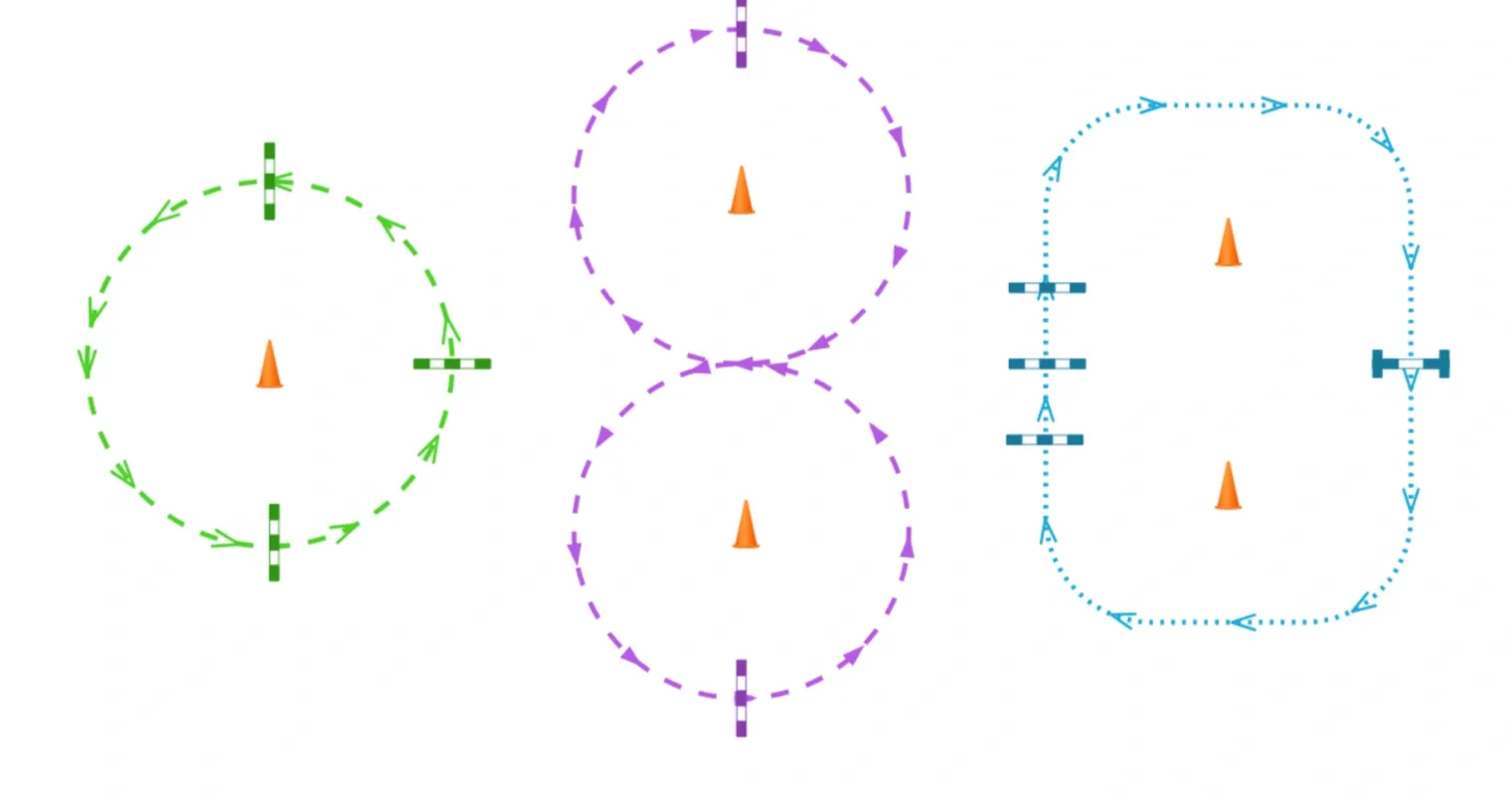
Continue to create exercise variations using the same equipment layout. You do not need to connect the obstacles after drawing the lines.
Method B — connect training sections
Choose this method instead of drawing the riding line when you need connected-distance measurements or route-following cameras.
- Place the obstacles you want to connect and select the first one.
- Choose the line-connector or freehand-connection mode. Drag from the selected obstacle’s connector to a green connector on the next obstacle.
- Extend the section from its end. Adjust the line’s control points to shape approaches and turns.
- Continue to another obstacle, including one already used, and choose the entry side for that occurrence.
Training sections can reuse an obstacle, including from different directions. You extend a section from its end, rather than branching from its middle. Separate sections do not need to belong to a competition round; Start and Finish are not required to turn an exercise into a valid training layout. The combined Finish/Start object is not supported by the training connector.
The keyboard C connection method documented for competition courses is not available in Training. For connector instructions, see Connecting the obstacles.
Continue to create exercise variations using the same equipment layout.
4. Create exercise variations without moving the equipment
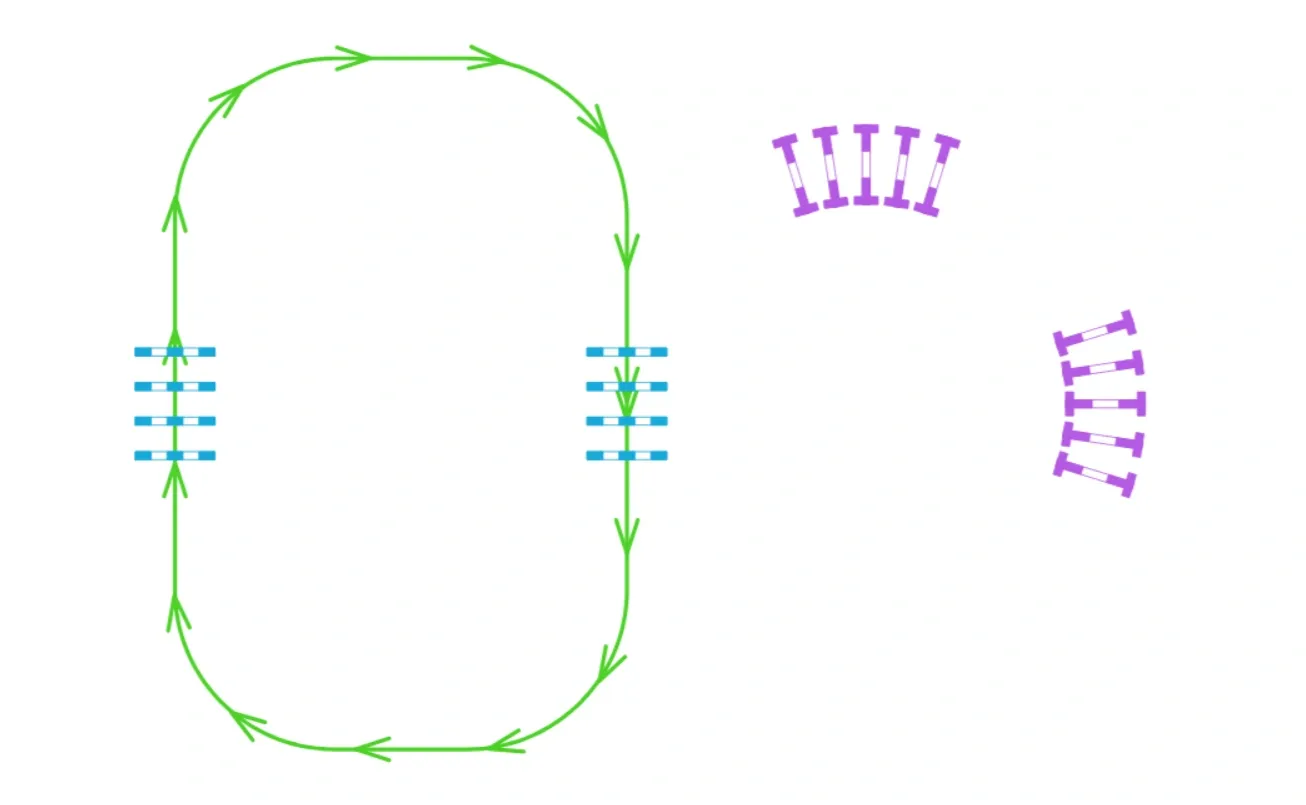
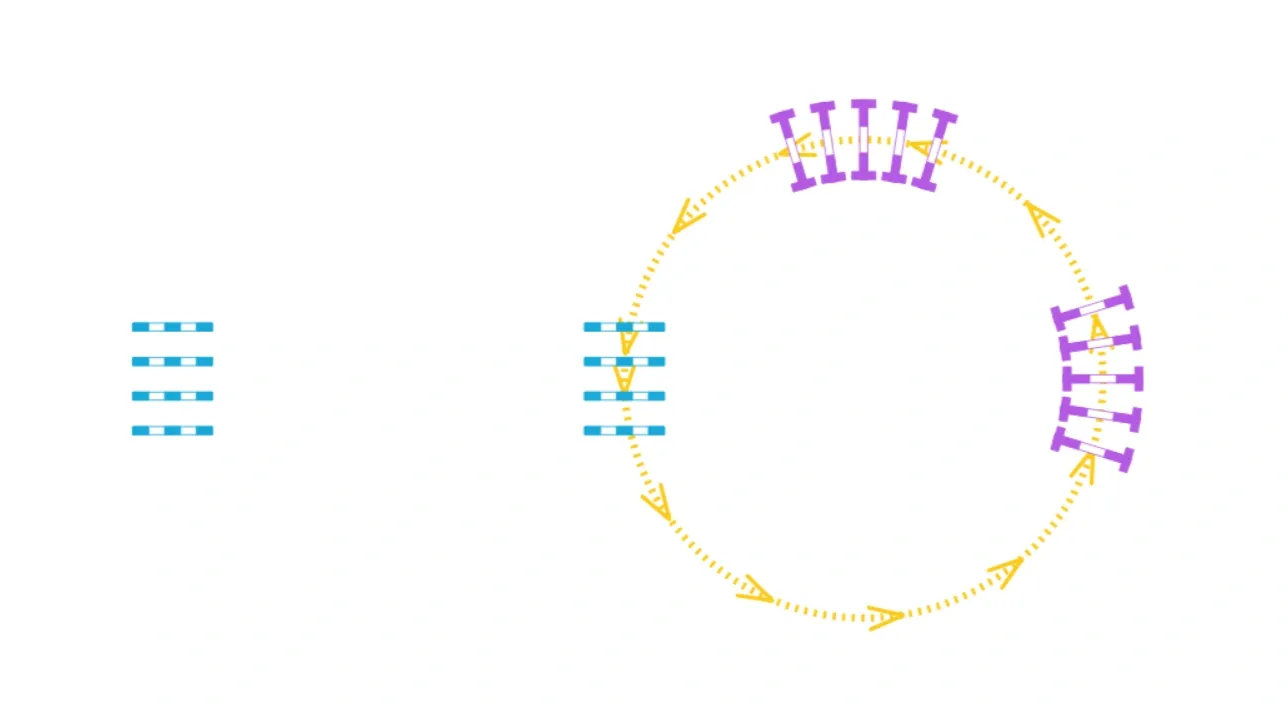
Clone the design before changing the riding line, keeping equipment positions unchanged. Give each copy a descriptive title and use a distinct line color and arrows. Keep the previous version so you can compare alternatives or return to it later. See Cloning a design.
These three illustrations use the same equipment layout with different drawn riding lines. They demonstrate planning options, not connected training sections or a prescribed session.
5. Review the plan and take it to the arena
Add notes for the intended gait, direction and exercise. In the print/PDF dialog, choose the standard plan and the display options you need. Standard training-plan printing is available in Advanced and Masters; detailed masterplans and setup tables require Masters. See Printing a design and saving to PDF.
Use the 3D view to inspect the equipment from above and ground level. Navigate freely; automatic route-following cameras need an obstacle-connected track, not just a drawn curve. For controls and mobile-device limitations, see 3D Visualization.
For offline work with Masters, sign in and open the projects you need on the same device and browser while online, before going to the arena. See Working with the application.
How validation differs from competition projects
Training does not use competition-round completeness or federation/class checks. A training section is not an unfinished competition round just because it has no Start or Finish. Connected tracks may still show distance/stride warnings based on the configured stride settings. These are not an automatic assessment of suitable pole spacing, exercise difficulty or safety.
The round-assignment warnings in Course, tracks and rounds concern competition projects. A clear training plan can consist of equipment and drawn lines without any connected track.